SecureGen
SecureGen is an open-source hardware security device based on the ESP32 T-Display that serves as a TOTP/HOTP authenticator and a BLE-enabled password manager. It utilizes FreeRTOS for system management and hardware-accelerated AES-256 encryption to provide a secure, offline alternative to software-based authentication tools. The system features a built-in web management interface for configuration and credential management without requiring cloud connectivity.
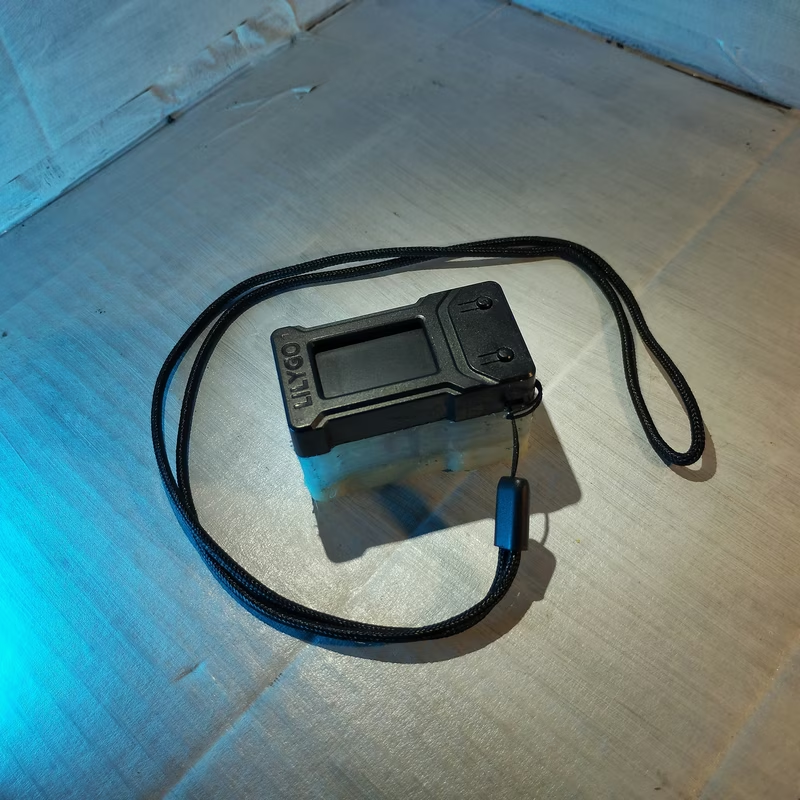
SecureGen is a multifunctional security device designed for the LILYGO T-Display ESP32 platform. It provides a robust, open-source alternative to proprietary hardware tokens and software-based authenticators. By combining a TOTP/HOTP authenticator with a password manager that acts as a BLE keyboard, SecureGen allows users to manage their digital security entirely offline or through a controlled local interface.
Core Capabilities
The device functions primarily as a Time-based One-Time Password (TOTP) and HMAC-based One-Time Password (HOTP) authenticator. It is fully compatible with standard services like Google and Microsoft Authenticator, supporting SHA1, SHA256, and SHA512 algorithms. Users can add keys via QR code scanning through the web interface or manual entry. A unique feature is the ability to export keys directly from the device screen as a QR code, facilitating easy migration or backup.
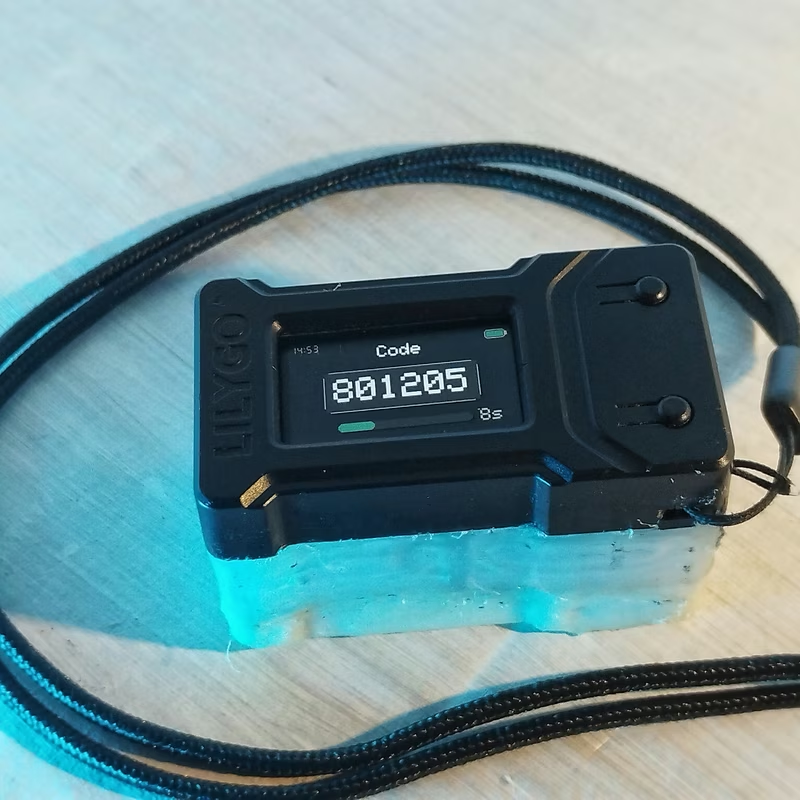
Beyond authentication codes, SecureGen includes a secure password manager. This offline vault stores credentials and utilizes the ESP32’s Bluetooth Low Energy (BLE) capabilities to act as a HID keyboard. This allows the device to type passwords directly into a computer or smartphone, eliminating the security risks associated with the system clipboard. For environments requiring high reliability, the project supports the DS3231 RTC module to ensure accurate timekeeping even when the device is fully offline.
Web Management Interface
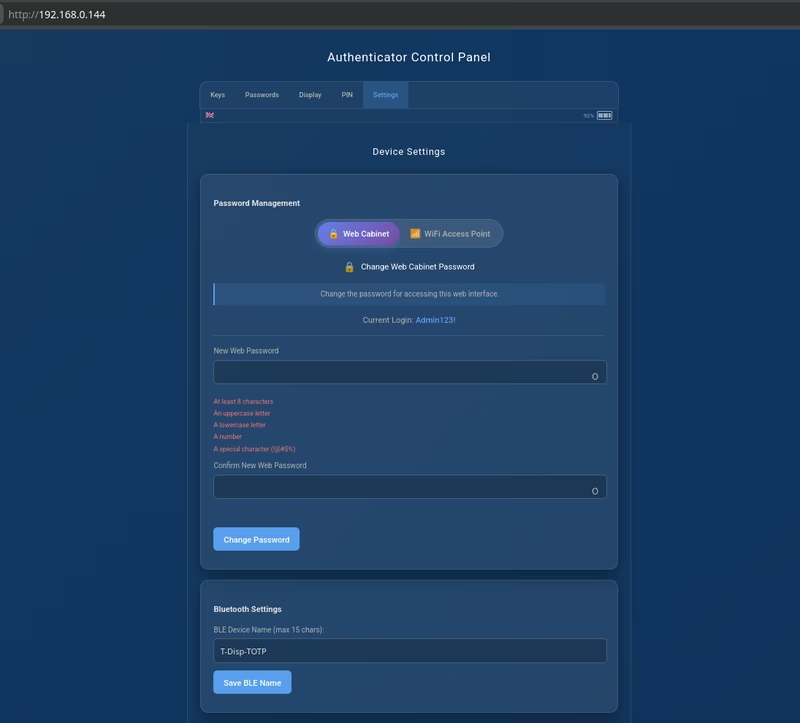
Configuration and bulk management are handled through a web interface that runs directly on the ESP32. It requires no cloud connection or external servers. The interface supports three network modes: a WiFi client mode for home networks, an Access Point (AP) mode for direct connection, and a fully offline mode. Through this dashboard, users can manage their TOTP accounts, access the password vault, use an advanced password generator, and customize device settings like display themes and network configurations.
Technical Security Architecture
Security is the central pillar of the design. Sensitive data is encrypted using AES-256 with a unique per-device key derived from a user-defined PIN via PBKDF2-HMAC-SHA256. The communication between the web browser and the device is protected by an HTTPS-like channel using ECDH P-256 key exchange and AES-256-GCM encryption, ensuring privacy even in AP mode.
The system implements eight layers of web protection, including session encryption, URL obfuscation, decoy traffic, and honeypot endpoints. On the hardware side, the device features a persistent PIN lockout mechanism that survives reboots, secure memory wiping before entering deep sleep, and encrypted BLE pairing to prevent unauthorized access.
Hardware and Interaction
The project targets the LILYGO TTGO T-Display ESP32, which features a dual-core processor and a 1.14” TFT display. Navigation is handled via two physical buttons: the top button for previous items and mode switching, and the bottom button for next items and power management. Holding both buttons enables the BLE keyboard or triggers a factory reset during the boot sequence. The firmware is optimized for power efficiency, supporting deep sleep and real-time battery voltage monitoring.
Getting Started
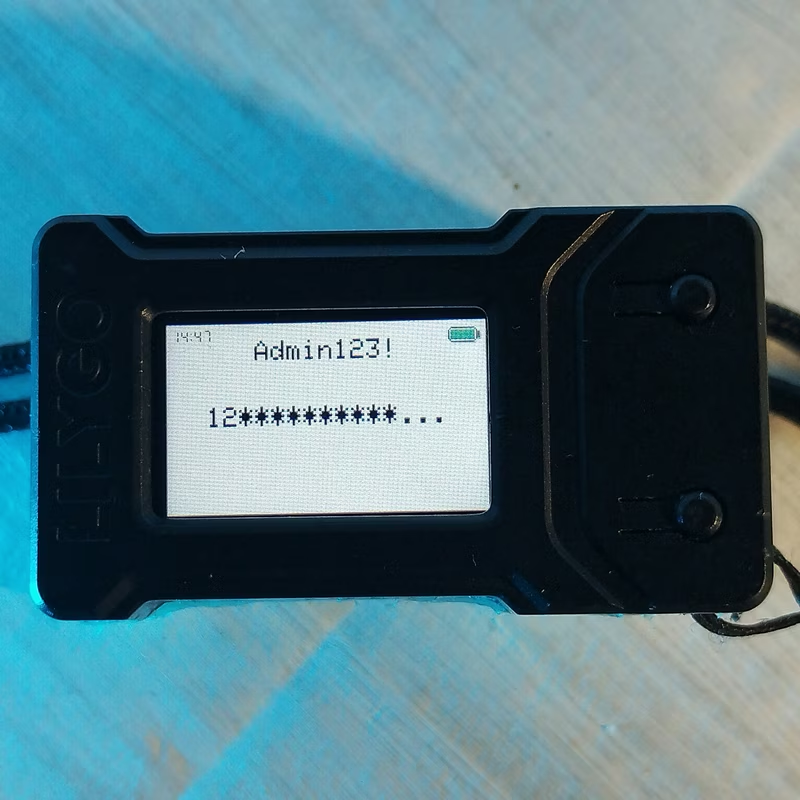
The project is built using the PlatformIO ecosystem. Developers can clone the repository and deploy the firmware using VS Code. For users who prefer a non-technical setup, a web-based flasher is available for Chrome and Edge browsers, allowing the device to be programmed via USB without local tool installation. Upon the first boot, the device enters a setup mode where users can configure WiFi, set an administrator password, and establish a security PIN.
Related Projects
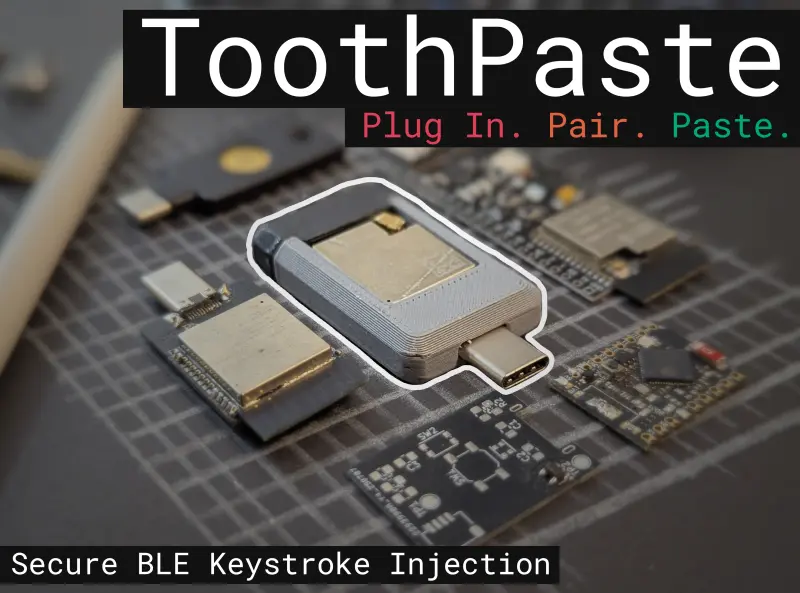
ToothPaste
ToothPaste is an ESP32-S3 based hardware receiver that converts Web-BLE signals into AES-128 encrypted USB HID keyboard and mouse commands. It provides a secure, driverless solution for entering complex passwords and executing DuckyScript macros on air-gapped or untrusted systems.
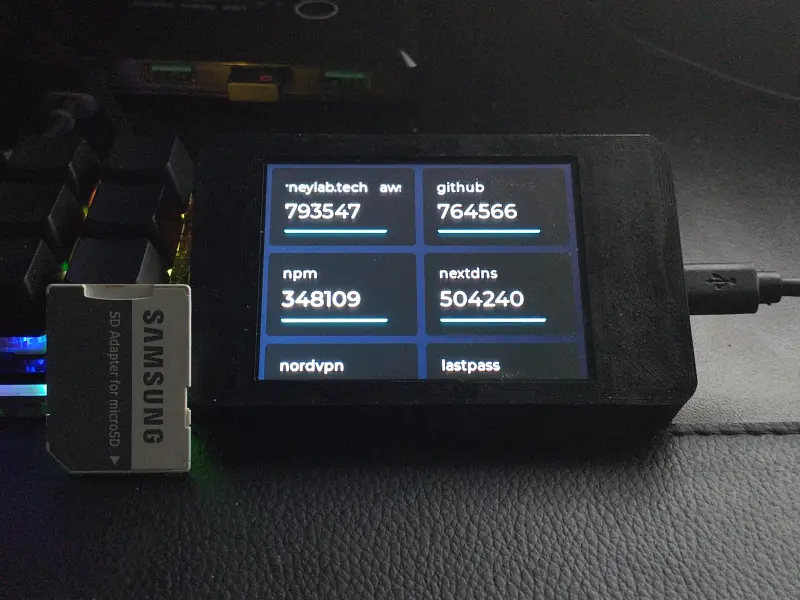
ESP32 MFA Authenticator
A standalone hardware TOTP generator for the ESP32 platform, featuring a touch-screen interface powered by LVGL. It provides a secure way to manage MFA codes without a smartphone, supporting WiFi time synchronization and SD card configuration.