MicroPython SSD1306 Image Display
A comprehensive system for driving SSD-1306 OLED displays and converting standard bitmap images into MicroPython-compatible buffers. It features an I2C driver for 128x64 monochrome displays and a Python-based conversion utility for JPG and PNG files.
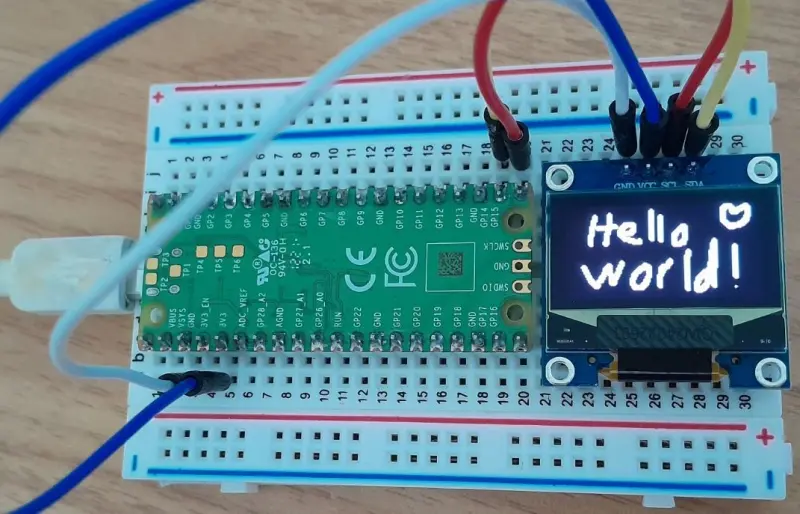
Overview
The SSD-1306 is one of the most common driver chips found in small, monochrome OLED displays, typically featuring a resolution of 128x64 pixels. While displaying text on these screens is a standard feature of most libraries, rendering complex images often requires manual bit-manipulation. This project provides a streamlined workflow for MicroPython developers to convert standard image formats like JPG and PNG into a binary format that the SSD-1306 can render efficiently.
Interfacing with the SSD-1306
The project utilizes a dedicated ssd1306.py module to handle communication over the I2C protocol. This module allows for low-level pixel manipulation, screen filling, and text rendering. For hardware like the Raspberry Pi Pico (RP2040), setting up the display involves initializing the I2C bus and defining the display dimensions.
import machine
import ssd1306

# Initialize I2C and Display
i2c = machine.I2C(1, sda=machine.Pin(14), scl=machine.Pin(15))
oled = ssd1306.SSD1306_I2C(128, 64, i2c)

# Basic operations
oled.fill(0)
oled.text("Hello, world!", 0, 0)
oled.show()
Image Conversion Logic
The core of this repository is the image conversion system found in convert.py. Because the SSD-1306 represents each pixel as a single bit (0 for off, 1 for on), standard color images must be processed before they can be displayed.
The conversion process follows these steps:
- Thresholding: Using the Pillow library, the script opens an image and evaluates the RGB values of each pixel against a threshold to determine if it should be ‘on’ or ‘off’.
- Bit Packing: Since microcontrollers handle data in bytes, the script chunks groups of eight pixels into a single byte.
- Buffer Generation: These bytes are collected into a
bytearraythat MicroPython’sframebufmodule can interpret.
This approach allows developers to take a 128x64 JPG created in a standard editor and transform it into a raw buffer that can be ‘blitted’ directly to the OLED screen.
Displaying Images on Device
Once an image is converted into a buffer, it can be loaded into the device’s memory. By using MicroPython’s built-in framebuf library, the binary data is treated as a monochrome frame buffer which is then copied to the OLED’s internal memory.
import framebuf

# Example: Loading a 32x32 smiley face buffer
smiley = bytearray(b'\x00?\xfc\x00\x00\xff\xff\x00...')
fb = framebuf.FrameBuffer(smiley, 32, 32, framebuf.MONO_HLSB)

# Project the image onto the display
oled.blit(fb, 0, 0)
oled.show()
Pre-converted Graphics and Collections
To help developers get started quickly, the repository includes a collection of pre-converted alphanumeric graphics. These assets are provided in various resolutions (16x16, 32x32, and 64x64), allowing for high-quality custom typography or iconography without needing to run the conversion script manually. For those looking to build their own libraries, the images_to_buffers function can batch-process entire folders of bitmap images into ready-to-use MicroPython files.